Generate Signature

Mac guide

How to Sign a PDF on a Mac

Preview can sign a PDF for you, and on most Macs it takes about ten seconds. But Preview only accepts a signature it can capture from a trackpad, a camera or a paired iPhone — so the same instructions fail on a Mac mini, on an iMac with a mouse, and on any document that needs a typed or reusable signature. This guide covers the built-in route, the four cases where it stops working, and what to do instead.

The built-in route: signing in Preview

Preview is the PDF viewer that ships with macOS, and its Markup toolbar can place a signature on any PDF you can open. Apple documents three ways to capture that signature, and the signature is then stored in your keychain so you can reuse it.

  1. Open the PDF in Preview Double-click the file. If it opens in another app, Control-click it and choose Open With → Preview.
  2. Open the Markup toolbar Click the Markup toolbar button (the pen-nib icon at the top right). If it is not visible, widen the window or use View → Show Markup Toolbar.
  3. Click the Sign icon The signature popover lists any signatures you have already saved. If there are none, you are offered the three capture routes below.
  4. Create a signature from a trackpad Click Trackpad, sign your name on the trackpad with one finger, then press any key and click Done. On a Force Touch trackpad, pressing harder draws a heavier line.
  5. Or capture one with the camera Click Camera, then hold your signature on white paper level with the blue line in the preview window until it appears, and click Done.
  6. Or sign on an iPhone or iPad Click Select Device, choose a nearby device, sign with a finger or Apple Pencil, and tap Done. This needs Continuity, which requires both devices on the same Apple ID with Bluetooth and Wi-Fi on.
  7. Place and resize it Click the saved signature to drop it on the page, drag it into position, and use the handles to resize it.
  8. Save the document Press Command-S. If iCloud Drive is on, the signature is also available to Preview on your other Macs.

Steps checked against Apple: Fill out and sign PDF forms in Preview on Mac . Procedure is the vendor's, not ours.

Four cases where Preview will not do what you need

None of these are bugs — they follow from how Preview captures a signature. They are also the reason queries like the ones below exist, in large numbers.

You have a mouse, not a trackpad

Preview's three capture routes are trackpad, camera and a paired iPhone or iPad. There is no fourth option to draw with a mouse, and no way to import an existing signature image file. On a Mac mini, a Mac Studio, or an iMac with a third-party mouse, the Trackpad route is simply not offered — which is what people are describing when they say the signature option in Preview is greyed out or not working.

You want to type your signature

Preview has no typed-signature route. Every signature has to come from a physical capture, so there is no way to produce a clean script from your name, no font choice, and no way to make a legible signature if your own handwriting is not legible.

You need the same signature again, on another machine

Saved signatures travel between Macs through iCloud Drive and the keychain. They do not travel to a Windows laptop, to a work computer you are not signed into, or to a browser on someone else's machine. A PNG you own does.

The receiving system wants a flat, plain signature

Preview places the signature as an annotation on the PDF rather than as a cryptographic signature, and the annotation stays editable in the copy you keep. Most recipients are fine with that. When an upload portal rejects the file or shows a blank signature box, the annotation layer is the usual cause, and a signature stamped in as a flat image is what fixes it.

The route that works on every Mac: sign it in the browser

This needs no install, no Acrobat and no account, and it works the same on a trackpad Mac, a mouse-only Mac and a machine you do not own. The PDF is read and rewritten in your own browser — there is no upload endpoint on this site to send it to.

  1. Make your signature first At the signature generator, type your name and pick from 50 handwriting fonts, draw it if you are on a trackpad, or upload a photo of a signature you already use and remove its background.
  2. Sign the PDF Open the PDF signer, drop in your document, and place the signature, initials and date where they belong.
  3. Match the document Resize and rotate the signature so it sits on the line at the size the rest of the form uses.
  4. Download and send Save the signed PDF with no watermark or footer, then attach it as normal.

Sign a PDF in your browser → Create the signature first →

Preview versus a browser signing tool on a Mac

Both produce a simple electronic signature that most recipients accept. They differ in what they can start from.

What you need The built-in route Signing in the browser
Works with only a mouse No capture route Yes
Typed signature from a font Not offered 50 handwriting fonts
Photo of your real signature Camera capture only Upload and remove the background
Reusable on another computer iCloud and keychain only Any browser, any OS
Needs a paired iPhone or iPad For one of three routes No
Install or subscription Ships with macOS Neither
Where the document goes Stays on your Mac Stays in your browser

Why the signature option in Preview is unavailable

Preview does not draw a signature, it captures one. Apple's own instructions offer exactly three sources — the trackpad you sign on with a finger, the built-in camera you hold a paper signature up to, and a nearby iPhone or iPad through Continuity — so the Sign menu has nothing to offer when none of those are present or permitted.

In practice that means the signature tool disappears in three situations people run into constantly: a desktop Mac with a mouse and no webcam, a Mac where Continuity is unavailable because the phone is on a different Apple ID or Bluetooth is off, and a locked-down work machine where the camera has been disabled by policy. The tool is not broken in any of those cases, but there is no message explaining that either.

  • Desktop Mac with a mouse: sign from a phone instead, or use the browser route and type the signature.
  • Camera access blocked: check System Settings → Privacy & Security → Camera, and quit any app holding the camera.
  • Continuity greyed out: confirm both devices are on the same Apple ID with Wi-Fi and Bluetooth on, and that Handoff is enabled.
  • Trackpad option missing entirely: it requires a built-in or Magic Trackpad — a mouse cannot substitute.

Can you sign a PDF on a Mac without Adobe Acrobat?

Yes, and most Mac users never need Acrobat at all. Acrobat Reader can fill and sign, but the modern versions want you signed into a free Adobe account to do it, and features past that sit behind an Acrobat Pro subscription. The tools already on the Mac — Preview for a captured signature, and a browser for a typed or uploaded one — cover the ordinary case of signing a contract, a lease, a tax form or an HR document and sending it back.

Acrobat becomes the right answer when you need something beyond a visual signature: certificate-based signing with a verified identity, redaction, PDF/A conversion for archiving, or a document you can lock against further edits. If none of those describe your task, installing several hundred megabytes of software to place a signature is unnecessary work.

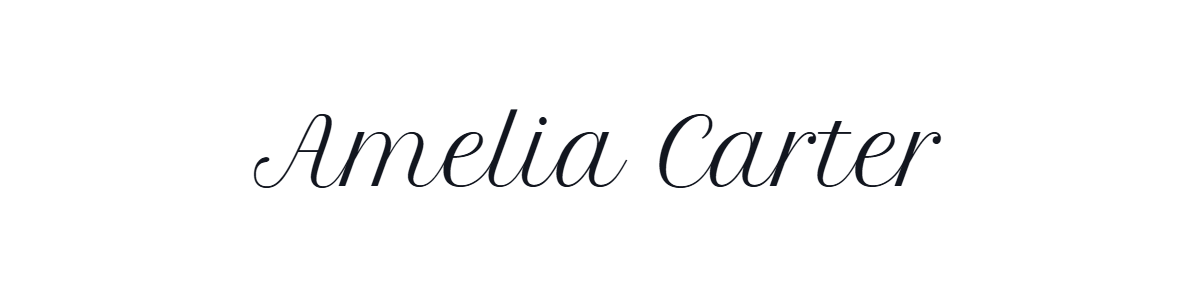
Signatures that hold up on a printed form

A signature on a lease or an HR form is read by someone who has never seen your handwriting. These six stay legible at the size a document actually prints them, and the generator will write any of them in your own name.

  • Amelia Carter written in Marck Script, a free classic script signature font
    Marck Script Amelia Carter written in the Marck Script signature font
  • Amelia Carter written in Petit Formal Script, a free classic script signature font
    Petit Formal Script Amelia Carter written in the Petit Formal Script signature font
  • Amelia Carter written in Great Vibes, a free elegant calligraphy signature font
    Great Vibes Amelia Carter written in the Great Vibes signature font
  • Amelia Carter written in Allura, a free elegant calligraphy signature font
    Allura Amelia Carter written in the Allura signature font
  • Amelia Carter written in Dancing Script, a free casual handwriting signature font
    Dancing Script Amelia Carter written in the Dancing Script signature font
  • Amelia Carter written in Sacramento, a free elegant calligraphy signature font
    Sacramento Amelia Carter written in the Sacramento signature font

Write your own name in any of these →

FAQ

How to Sign a PDF on a Mac: frequently asked questions

Can I sign a PDF on a Mac without a trackpad?

Not in Preview, because it can only capture a signature from a trackpad, a camera or a paired iPhone or iPad. If you have a webcam you can hold a signature on white paper in front of it, and if you have an iPhone you can sign on that instead. Otherwise type your name in a handwriting font and stamp it on the PDF with the browser signer — no trackpad required.

Why is the signature option greyed out or missing in Preview?

Preview captures signatures rather than drawing them, so the Sign menu only offers something when it can see a trackpad, a camera or a paired iPhone or iPad. A desktop Mac with a mouse, a Mac whose camera access is blocked in System Settings, and a Mac whose Continuity pairing is not working all leave that menu without a source to capture from.

Can I type my signature in Preview instead of drawing it?

No. Preview has no typed-signature route and no font picker, so every signature has to be physically captured once. To type your name and have it rendered as handwriting, use the signature generator, which offers 50 scripts, then place the result on the PDF in the browser signer.

Where does Preview save the signatures I create?

They are kept in your login keychain and, when iCloud Drive is enabled, made available to Preview on your other Macs. They are not shared with other people, and they do not follow you to a Windows PC or to a browser on a machine you are not signed into.

Is a signature added in Preview legally binding?

For the documents most people sign, yes. Both the US ESIGN Act and state UETA provide that a signature cannot be denied effect only because it is electronic, and a signature placed in Preview is an ordinary simple electronic signature. What matters is that you intended to sign, that the signature can be attributed to you, and that each party can keep and reproduce the document. Documents that require notarisation or a witness are the standard exceptions.